


Table of Contents
- What Makes a Digital Photo Frame Worth Buying
- Digital Photo Frame Screen Size and Aspect Ratio
- Display Resolution and Image Quality in Digital Frames
- Wi-Fi Connectivity and What It Actually Enables
- How to Send Photos to a Digital Frame
- The Hidden Costs: Power, Subscriptions, and Long-Term Ownership
- Common Mistakes When Choosing and Setting Up a Digital Photo Frame
- Frequently Asked Questions
Last Updated: October 16, 2026
What Makes a Digital Photo Frame Worth Buying
A picture frame for digital photos displays images from your phone, cloud storage, or computer on a dedicated screen, refreshing automatically as you add new memories.
Most buyers focus on screen size or resolution and ignore what determines whether they'll still use the frame six months later.
The best digital photo frame for you depends on three things: how you want to send photos to it, whether you're willing to pay for ongoing services, and what fits your space and power setup.
Digital Photo Frame Screen Size and Aspect Ratio
Screen size ranges from 5 to 15 inches. Larger screens cost more and demand more space; smaller frames work on desks or nightstands but disappear in a living room.
Aspect ratio matters more than most buyers realize. A 4:3 digital photo frame shows phone photos (usually 9:16) with black bars; a 16:9 widescreen shows landscape better but crops vertical shots. Some frames auto-rotate to match orientation.
Placement drives the choice: a nightstand frame can be small and portrait-oriented, a living room display larger and widescreen.
Display Resolution and Image Quality in Digital Frames
Most digital photo frames range from 800x600 to 1920x1080 or higher. Higher resolution is visible only above 10 inches; on a 7-inch frame, 800x600 and 1080p look nearly identical.
Brightness matters more than resolution. Low-brightness frames look washed out in daylight; 400+ nits stays visible in sunlight. If your frame sits near a window, brightness is critical.
Poor viewing angles wash out colors from the side, which matters if several people view the frame from different spots. Unless you view the frame from across a room, mid-range resolution (1024x768 or better) is sufficient, brightness and viewing angle matter far more than pixel count.
Wi-Fi Connectivity and What It Actually Enables
A digital photo frame with Wi-Fi lets you upload photos remotely instead of via memory card or USB, the feature that determines whether a frame stays useful.
Without Wi-Fi, you're limited to USB, memory card, or a clunky desktop app. That works once, but you'll stop updating it after a month.
With Wi-Fi, family members can send photos directly to the frame, and automatic syncing from Google Photos, iCloud, or Dropbox means new photos appear without you touching it. The catch: Wi-Fi only matters if the app or cloud service is reliable.
Privacy, Account Security, and Photo Ownership
The question that matters most once the frame is on your counter: who can see your photos, and what happens to them if the service goes away?
Connecting a frame to a cloud account typically grants the manufacturer's app ongoing access to a folder, album, or your entire library until you revoke it. Vendors often store copies on their own servers, so your images exist in at least two places.
Practical steps to keep control:
- Create a dedicated album, not a whole-library sync. Point the frame at a single shared album so you decide exactly which photos leave your account.
- Review connected apps. Google, Apple, and Dropbox all let you see and revoke third-party app access from your account security settings. Check this list once a year.
- Use a unique password and two-factor authentication on the frame's app account. If the vendor suffers a breach, a reused password exposes your email too.
- Read the privacy policy for retention terms. Look for how long the vendor keeps uploaded photos after you delete them from the frame and whether it shares data with advertisers.
- Understand family-sharing permissions. On most frames, anyone with the frame's share code or invite link can add photos. Treat that code like a password and rotate it if a relationship changes.
What Happens When a Service Shuts Down
Digital frame vendors have discontinued cloud services before. When they do, remote uploads, email-to-frame, and family sharing stop working; the frame keeps displaying what's stored locally, but you can no longer add photos over the air.
Before you buy, ask three questions:
- Does the frame work without Wi-Fi? Confirm it can display photos from a memory card or USB drive as a fallback.
- How long has the company been operating, and how often does it ship app updates? An app last updated two years ago is a warning sign.
- Is there an export path? You should be able to pull your photos off the frame or out of the vendor's cloud, not just push them in.
Wi-Fi Specs That Actually Matter
- Dual-band support (2.4 GHz and 5 GHz). A 2.4 GHz-only frame can struggle on congested networks. If your router separates the bands, confirm the frame can join the right one.
- WPA2 or WPA3 security. Older frames that only support WEP or open networks are a security liability.
- Offline caching. The frame should store photos locally so a brief internet outage doesn't blank the screen.
- Local network transfer. Some frames let you push photos over your home network without routing them through the vendor's cloud, which is both faster and more private.
How to Send Photos to a Digital Frame
Most frames offer three methods, a mobile app, email uploads, or cloud integration, and the best make at least two seamless.
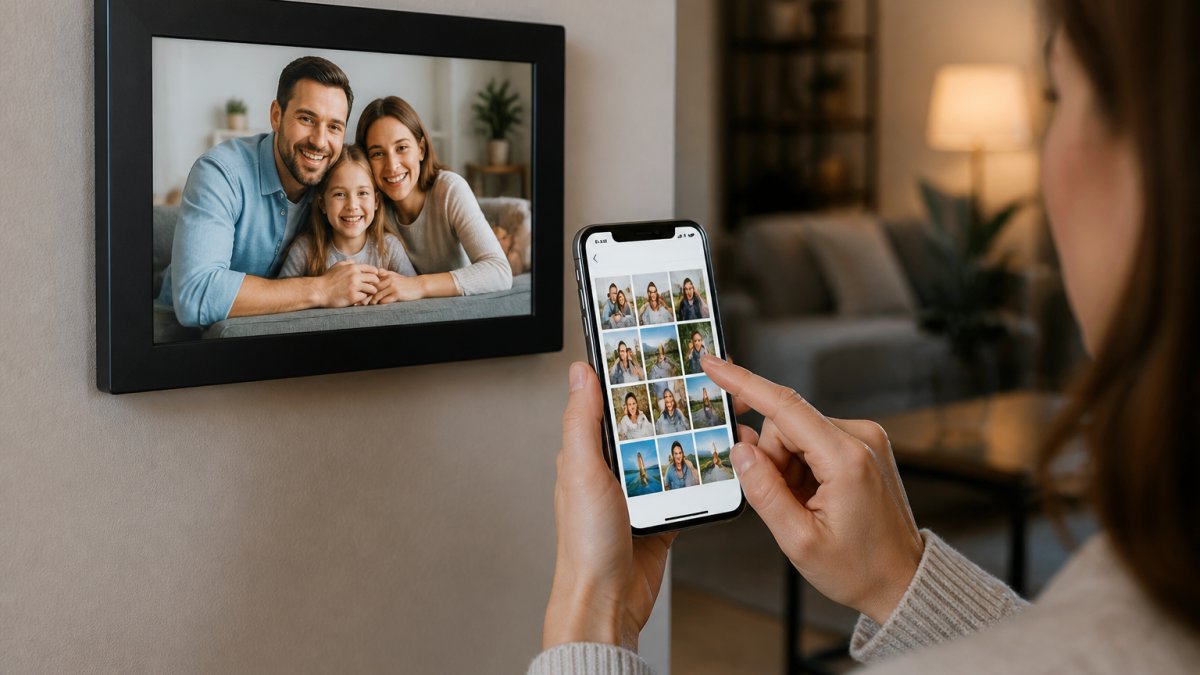
Mobile app method: Download the app, add the frame to your network, and send photos from your gallery. It works instantly, but a poorly designed app is frustrating daily.
Email method: Send photos to the frame's unique address; it checks periodically and displays them. Works across devices with no app, but photos may take 10-30 minutes to appear.
Cloud service integration: Connect to Google Photos, iCloud, or Dropbox for automatic syncing. Most hands-off, but requires trusting the manufacturer with cloud account access.
File Formats, Sizes, and Upload Limits
Before blaming the frame, check the file. Most accept JPEG; PNG is usually supported. HEIC, the default on newer iPhones, is the top cause of "my photo won't upload" complaints. If unsupported, set your camera to "Most Compatible" or export as JPEG.
Other formats to watch for:
- RAW files (CR2, NEF, ARW): Almost never supported. Convert to JPEG first.
- GIF and animated formats: Rarely supported; they'll often appear as a single static frame.
- Video (MP4, MOV): Support varies widely. Check the frame's spec sheet for maximum clip length and resolution, many cap clips at 15-30 seconds.
File size limits are real: per-photo caps often fall between 5 MB and 20 MB, and some email services compress images. Modern phone photos easily exceed 5 MB, so downsize if uploads keep failing.
Aspect Ratio and Cropping
A frame's screen has a fixed shape your photos rarely match, producing letterboxing (black bars), cropping (cut edges), or stretching (distorted faces).
- 4:3 frames match most point-and-shoot and older phone photos.
- 16:9 frames match landscape video and modern widescreen shots but crop vertical phone photos aggressively.
- Auto-rotating frames detect orientation and rotate the display, the friendliest option if your library mixes portrait and landscape.
In the app, look for a crop or fit setting: "fit" preserves the whole photo with bars, "fill" crops to the screen. For a family frame, "fit" is the safer default.
Troubleshooting Slow or Failed Transfers
When a photo doesn't show up, work through this:
- Confirm the frame is online. Check the frame's status screen or app for a Wi-Fi connection indicator.
- Check the app's upload queue. A stuck item usually means a network hiccup.
- Verify the file format and size against the frame's supported list.
- Restart the frame and the app. This clears most stuck sync states.
- Check the cloud account's sharing permissions. If you revoked the frame's access to your photo library, sync stops silently.
- Try a different network. If your router uses band steering or a guest network with client isolation, the frame may not reach the vendor's servers.
Setting Up and Managing a Frame for Someone Else
Many digital frames are bought by adult children for parents or grandparents, and setup is where most fail. If you manage the frame remotely:
- Do the initial setup yourself before gifting. Connect it to the recipient's Wi-Fi, create the account, and load a starter album so the frame works the moment it's unboxed.
- Use a shared admin account so you can add photos, adjust settings, and troubleshoot without physical access.
- Prefer email-to-frame for older recipients. It requires no app, no account, and no learning curve.
- Check the on-screen menu readability. Large fonts, high contrast, and simple navigation matter more than resolution for someone who isn't comfortable with touchscreens.
- Look for remote brightness and sleep scheduling. Dimming the frame at night from your phone prevents the "it's too bright in my bedroom" problem that leads to frames getting unplugged.
- Confirm the frame has physical buttons or a remote as a fallback. Touch-only frames can be frustrating for users with limited dexterity.
The Hidden Costs: Power, Subscriptions, and Long-Term Ownership
The sticker price is only the beginning. A picture frame for digital photos has ongoing costs most buyers overlook.
Power consumption: Frames run 24/7, drawing 5-15 watts, roughly 40-130 kWh, or $5-15 a year. Motion sensors and adjustable brightness schedules cut this.
Wi-Fi and cloud dependence: If the manufacturer's cloud service shuts down, your frame may stop accepting remote uploads. Established brands are safer bets.
Replacement costs: Digital frames aren't repairable. If the screen cracks or the electronics fail, you replace the whole unit.
Common Mistakes When Choosing and Setting Up a Digital Photo Frame
Mistake 1: Buying based on screen size alone. A 15-inch frame won't fit every wall, and low resolution can't fill it.
Mistake 4: Not checking power placement. Digital frames need a power outlet nearby.
Mistake 6: Underestimating setup friction. Even great apps require Wi-Fi, an account, family members, and cloud sync, 30-60 minutes.
Choosing the right picture frame for digital photos means matching features to your workflow. Decide how you'll send photos first, that eliminates most options.
At LumBrook, we recommend prioritizing reliability and ease of use over flashy specs.
Frequently Asked Questions
Do digital photo frames need Wi-Fi?
Not always. Some digital photo frames work with USB drives or memory cards for offline viewing. However, Wi-Fi-enabled frames let you send photos remotely from your phone or computer, which is far more convenient for regular updates. If you want to share photos with family members or receive images automatically, Wi-Fi is essential. For a static slideshow of pre-loaded photos, Wi-Fi is optional.
What size digital photo frame is best for a living room?
Living rooms typically work well with 10-15 inch frames, depending on wall space and viewing distance. Larger rooms (20+ feet) can accommodate 15+ inch displays without strain. Consider your wall layout and furniture arrangement. A frame that's too small looks lost on a large wall; too large can feel overwhelming in a compact space. Measure your intended spot before purchasing to ensure the frame fits your decor.
How do you send photos to a digital picture frame?
Most Wi-Fi frames use a mobile app or web portal where you upload photos directly to the frame's cloud account. Some let you email photos to a dedicated address, or share albums from services like Google Photos or Amazon Photos. Setup typically takes 5-10 minutes: connect the frame to Wi-Fi, create an account, and grant photo permissions. Offline frames require a USB drive or memory card inserted into the frame.
What should you look for when buying a digital picture frame?
Prioritize screen resolution (at least 800×600 for clear images), aspect ratio (16:9 for modern photos, 4:3 for older prints), and brightness for well-lit rooms. Check connectivity options: Wi-Fi for remote uploads, USB or memory card slots for offline use. Verify app quality and ease of setup, poor apps frustrate daily use. Consider power consumption and placement flexibility (wall mount vs. tabletop stand). Finally, research the company's track record for software updates and customer support, since digital frames depend on ongoing service.


